Analytics / Reporting
How to Build an Ecommerce Dashboard in Looker Studio
// one screen, the metrics that drive decisions

By Fracto Solutions
September 24, 2026
The short answer
To build an ecommerce dashboard in Looker Studio, connect your data sources (GA4, Google Ads, and ideally your store and other ad platforms), then build one clean view of the metrics that drive decisions: revenue, conversion rate, AOV, traffic by channel, CAC, and ROAS. Keep it focused, one screen, decision-first.
Free
1
Reconcile
What is Looker Studio, and why use it for ecommerce?
Looker Studio (formerly Google Data Studio) is Google’s free reporting tool that connects to your data sources and turns them into shareable, auto-updating dashboards. For ecommerce, it lets you combine GA4, Google Ads, and other sources into one view instead of jumping between platforms.
The appeal is consolidation. Your ecommerce data lives in many places, GA4 for behavior, Google Ads and Meta for spend, Shopify for actual sales, and checking each separately is slow and produces conflicting numbers. Looker Studio connects to those sources and presents them together in dashboards that refresh automatically, so you get one regularly-updated picture instead of a manual monthly spreadsheet. It’s free, integrates natively with GA4 and Google Ads, and lets you share a live link with your team or clients. The catch, and the theme of this guide, is that a dashboard only reflects the quality of the data feeding it: connect trustworthy sources and it clarifies; connect broken tracking and it just makes the wrong numbers prettier.
What data sources should I connect?
At minimum GA4 and Google Ads (native connectors). Ideally add your other ad platforms and your actual store sales data, so you can compare platform-reported numbers against real revenue in one place.
Start with the connectors Looker Studio handles natively and freely: GA4 (for traffic, behavior, and on-site conversion) and Google Ads (for spend and campaign performance). For a fuller picture, add your other significant ad platforms (Meta and others, often via a paid connector) and, most importantly, your real sales data from Shopify. Having actual store revenue alongside platform-reported figures in one dashboard is what lets you catch the double-counting problem from the attribution pillar, where the ad platforms together claim more sales than you actually made. A dashboard that shows platform-reported revenue next to real Shopify revenue makes that gap visible instead of hidden.
Which metrics should an ecommerce dashboard include?
The few that drive decisions: revenue, conversion rate, average order value, revenue per visitor, traffic by channel, ad spend, ROAS, and CAC. Resist the urge to add everything, a dashboard with fifty metrics is one nobody reads.
A focused set beats a comprehensive one. The core metrics for an ecommerce decision dashboard:
Metric
What it tells you
Revenue (and vs target)
The headline result
Conversion rate
Are visitors buying?
Average order value
How big is each order?
Revenue per visitor
Conversion x AOV, the honest north star
Traffic by channel
Where visitors come from
Ad spend + ROAS
Return on paid, per channel
CAC
What it costs to win a customer
A focused core set mapped to real decisions; consistent with the KPI discipline in the growth-strategy cluster.
The test for any metric on the dashboard: would it change a decision? If not, it’s clutter. This mirrors the KPI selection in ecommerce KPIs that actually matter, applied to what you actually put on the screen.
- Dashboard that gets used
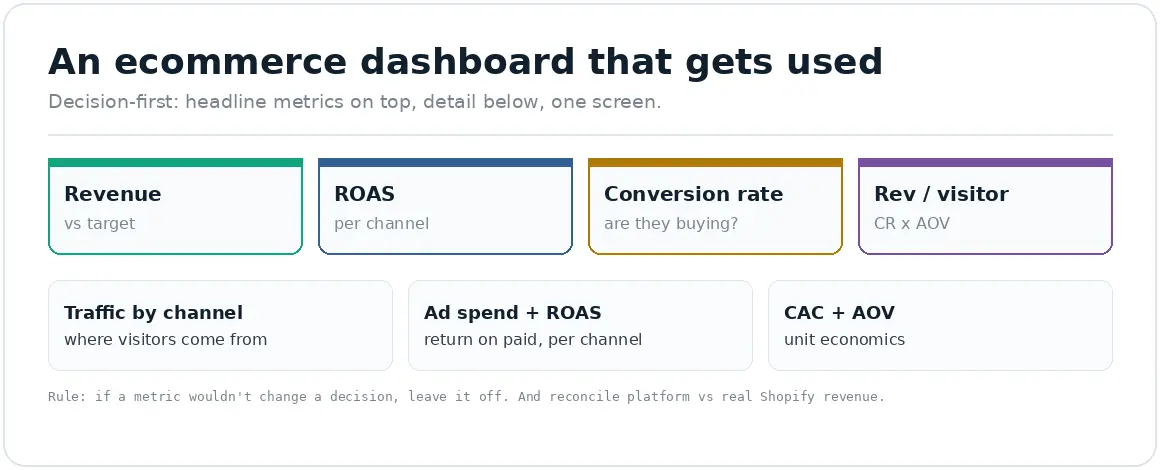
Decision-first: headline metrics on top, detail below, one screen.
How should I lay out the dashboard?
Decision-first and scannable: the most important numbers (revenue, ROAS, conversion) at the top, supporting detail below, and ideally one screen. Group related metrics, use clear labels, and add date and channel filters so people can self-serve.
Layout determines whether a dashboard gets used or ignored. Put the headline metrics people check first, revenue, ROAS, conversion rate, at the top where they’re seen immediately, with trend lines so change is visible at a glance. Below that, group supporting detail logically: traffic and channel breakdown together, paid performance together, on-site behavior together. Keep it to roughly one screen for the main view, a dashboard people have to scroll and hunt through doesn’t get read. Add interactive controls, a date-range selector and a channel filter, so viewers can answer their own follow-up questions without a new report. Clear labels and consistent formatting matter more than fancy charts; the goal is fast comprehension, not decoration.
How do I make sure the numbers are trustworthy?
Verify the underlying tracking before you trust the dashboard, and reconcile platform figures against your real Shopify revenue inside it. A dashboard inherits every error in its data sources, so accuracy work comes first, not after.
This is the step most guides skip, and it’s the most important. A beautiful dashboard built on broken tracking is worse than no dashboard, it gives confident, wrong answers. Before relying on it: confirm your GA4 tracking is accurate (the reconciliation checks from seven signs your analytics setup is broken), make sure channels are tagged with UTMs so traffic isn’t dumped into “direct,” and build a tile that shows platform-reported revenue next to actual Shopify revenue so the double-counting gap is visible. A dashboard that surfaces its own data-quality issues is far more valuable than one that hides them behind clean-looking charts. Trustworthy inputs first, then the dashboard clarifies rather than misleads. A practical habit: when you first build the dashboard, spend a week checking its numbers against the source platforms and your Shopify admin before anyone makes a decision from it. Small connector quirks (a mismatched date range, a currency setting, an untagged campaign) are common and easy to fix once, but expensive if they quietly skew months of reporting. Verify once, then trust it.
We build a focused dashboard on trustworthy data, reconciled to real revenue.
We connect your real sources, cut the view down to the metrics that drive decisions, and reconcile platform-reported numbers against actual Shopify revenue so the double-counting gap is visible, not hidden.
It’s part of our analytics and tracking work, and the numbers it surfaces feed the conversion optimization decisions they should drive.
// we would rather show up in your reporting than in your inbox
Frequently asked questions
Is Looker Studio free?
Yes, Looker Studio itself is free, with native connectors to GA4 and Google Ads at no cost. Some third-party data connectors (for Meta, Shopify, and other platforms) are paid, but you can build a solid ecommerce dashboard on the free Google connectors alone.
What metrics should an ecommerce dashboard show?
The few that drive decisions: revenue, conversion rate, average order value, revenue per visitor, traffic by channel, ad spend, ROAS, and CAC. Avoid overloading it, a focused dashboard people actually read beats a comprehensive one they ignore. If a metric wouldn’t change a decision, leave it off.
Can Looker Studio combine Google and Meta data?
Yes, though Meta usually needs a paid third-party connector while GA4 and Google Ads connect natively for free. Combining them (plus real Shopify sales) in one dashboard is exactly what lets you spot the cross-platform double-counting that inflates platform-reported ROAS.
Why don't my dashboard numbers match my platforms?
Usually attribution differences and double-counting: each platform counts conversions its own way, so their sum overstates real sales. A good dashboard shows platform-reported revenue next to actual Shopify revenue so the gap is visible. If numbers are wildly off, check your underlying tracking first.
Sources
Every statistic is traced to its original publisher and dated. Retention benchmark figures vary widely by source and category and are given here as directional ranges, not precise targets; famous single-source retention stats (like the “5 to 25x cheaper” multiplier) are treated as directional only. Benchmark against your own category and cohort trend.
Looker Studio (free Google reporting tool) connects natively to GA4 and Google Ads; third-party connectors (Meta, Shopify) often paid. Google Looker Studio documentation. https://cloud.google.com/looker-studio
Dashboard best practice (focus on decision-driving metrics; reconcile platform vs actual revenue) reflects established analytics practice and the attribution double-counting covered in the pillar.