WooCommerce / Speed
WooCommerce Speed Optimization: A Practical Checklist
// hosting and plugins first

By Fracto Solutions
September 7, 2026
The short answer
To speed up a WooCommerce store, work through five areas in order: quality hosting, plugin cleanup, image optimization, caching, and Core Web Vitals. Hosting and plugins are the biggest WooCommerce-specific culprits, so start there. Aim for LCP under 2.5s, INP under 200ms, and CLS under 0.1.
To speed up a WooCommerce store, work through five areas in order: quality hosting, plugin cleanup, image optimization, caching, and Core Web Vitals. Hosting and plugins are the biggest WooCommerce-specific culprits, so start there. Aim for LCP under 2.5s, INP under 200ms, and CLS under 0.1.
WooCommerce stores are especially prone to speed problems, because you own the hosting, the theme, and every plugin. That control is also where the slowness creeps in. This checklist covers what actually slows WooCommerce and how to fix it, in order of impact. It’s the speed deep-dive under why your WooCommerce store gets traffic but no sales, and speed’s effect on sales is covered cross-platform in how speed impacts conversion rate.
Why is my WooCommerce store slow?
Usually hosting, plugins, or unoptimized images, in that rough order. Because WooCommerce is self-hosted and plugin-driven, these are more common causes than on managed platforms.
WooCommerce gives you full control, which means the performance is fully your responsibility too. Three things account for most slowness: cheap or overloaded hosting that can’t serve pages fast, an accumulation of plugins each adding scripts, and large unoptimized images. Unlike a hosted platform that manages infrastructure for you, WooCommerce leaves all of this in your hands, which is why a store can be well-designed and still slow. The fixes below are ordered by how much they typically move the needle.
- WooCommerce speed checklist
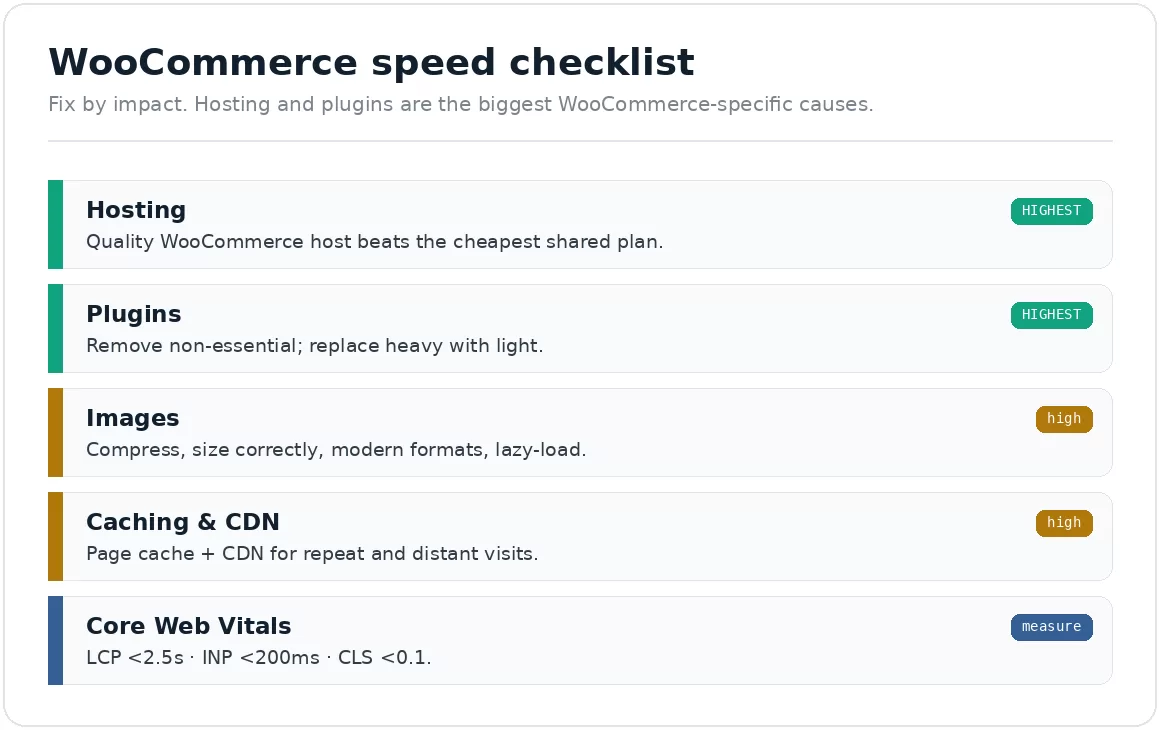
Fix by impact. Hosting and plugins are the biggest WooCommerce-specific causes.
Is my hosting fast enough for WooCommerce?
Start here, it’s the foundation. No amount of optimization fixes a slow host. Choose hosting built for WooCommerce, not the cheapest shared plan.
Use quality, WooCommerce-appropriate hosting. Cheap shared hosting is a common root cause; managed WooCommerce or a well-resourced host makes everything downstream faster.
Check your server response time. A slow time to first byte points at hosting, not your store.
Ensure adequate resources for your traffic, an overloaded server slows under load, exactly when you have visitors to convert.
If your store is slow and you’re on a bargain shared host, upgrading hosting is often the single highest-impact fix.
How many plugins is too many?
Plugin bloat is the classic WooCommerce speed killer. Every plugin can add scripts and database queries. Audit ruthlessly.
Remove plugins you don’t need. Deactivate and delete anything non-essential, each one is potential weight.
Replace heavy plugins with lighter alternatives where possible.
Watch for plugins that load scripts site-wide when they’re only needed on one page.
Keep plugins updated, outdated ones can be slow or insecure.
A lean plugin stack is one of the biggest levers you control. Many WooCommerce stores carry dozens of plugins, half of them forgotten.
How should I handle product images?
Large, unoptimized images are a top speed drag on any ecommerce store, and easy to fix.
Compress every image and serve appropriately sized versions, don’t load a 3000px image into a 400px space.
Use modern formats (like WebP) where supported.
Lazy-load below-the-fold images so they don’t block the initial render.
Set explicit image dimensions to avoid layout shift (which hurts your CLS score).
Do I need caching and a CDN?
Caching and a content delivery network make repeat and distant visits much faster. These are standard on hosted platforms; on WooCommerce you set them up.
Enable page caching (via a caching plugin or your host) so pages aren’t rebuilt on every visit.
Use a CDN to serve assets from locations near your visitors.
Minify and combine CSS/JS where it helps, and defer non-critical scripts.
Enable browser caching for returning visitors.
What Core Web Vitals scores should I aim for?
Measure against Google’s thresholds, which reflect real user experience and affect both conversion and rankings.
Core Web Vitals thresholds (Google documentation)
Metric
What it measures
Good
Needs work
Poor
LCP
Loading: when the largest element renders
under 2.5s
2.5s to 4.0s
over 4.0s
INP
Responsiveness: delay before the page reacts
under 200ms
200ms to 500ms
over 500ms
CLS
Visual stability: how much the layout jumps
under 0.1
0.1 to 0.25
over 0.25
Source: Google, Core Web Vitals thresholds, web.dev. Each metric is assessed at the 75th percentile of real page views, so three quarters of visits must hit the Good threshold for the page to pass. This is field data from real visitors, not a lab score, which is why a good PageSpeed lab result does not always mean a passing store.
Largest Contentful Paint under 2.5 seconds, how fast the main content loads.
Interaction to Next Paint under 200 milliseconds, how responsive the page feels.
Cumulative Layout Shift under 0.1, how visually stable the page is
Measure with a free tool like Google PageSpeed Insights, which reports these and flags what’s dragging them down. Test mobile separately, it’s usually slower and it’s where most shoppers are.
What should I fix first?
Hosting, then plugins. They’re the biggest WooCommerce-specific causes, and fixing them often improves everything else at once. Then images, caching, and Core Web Vitals refinements.
If your store is genuinely slow, don’t start with micro-optimizations, start with the foundation. A better host and a cleaned-up plugin stack frequently deliver the largest single gains on WooCommerce. Then optimize images, add caching and a CDN, and measure Core Web Vitals to catch what’s left. Re-test after each change so you know what actually helped.
We find where value leaks, fix the highest-impact issue first, and prove the gain in your own numbers.
That is the same baseline-first method behind our conversion optimization work: confirm the data is trustworthy, fix the biggest leak, then prove the gain in your own reporting.
Frequently asked questions
What's the biggest cause of a slow WooCommerce store?
Usually hosting or plugin bloat. Cheap shared hosting can’t serve pages fast, and an accumulation of plugins adds scripts and database load. These are the first two things to check, and often the highest-impact to fix.
How many plugins is too many for WooCommerce?
There’s no fixed number, it’s about weight, not count. A few heavy plugins can hurt more than many light ones. Audit what each one costs in performance and remove anything non-essential rather than chasing a magic number.
Does a CDN help WooCommerce speed?
Yes, especially if you have visitors spread across regions. A CDN serves assets from locations near each visitor, reducing load time. It’s standard on hosted platforms; on WooCommerce you add it yourself, and it’s usually worth it.
How do I measure WooCommerce speed?
Use Google PageSpeed Insights (free) to check Core Web Vitals against Google’s thresholds, and test mobile separately since it’s usually slower. Watch server response time too, a slow one points at hosting rather than your store.
Keep reading
Sources
Google, Core Web Vitals thresholds: LCP <2.5s, INP <200ms, CLS <0.1, 75th percentile of real-user data. https://web.dev/articles/vitals
WooCommerce speed causes (hosting, plugins, images) reflect established WooCommerce/WordPress performance practice.